Firefox-esr on Debian is a support version for Firefox mainly to extend their lifespan of use as an outdated version
Today we are fixing this issue playback that some armhf architecture users couldn’t fix. Also sorry for not putting the instructions on the YouTube video description because of YouTube being a dickhead so here we go
Then it required you to put password which is very important for this method Then type your full name and complete the process
If both sudo and nano are done, and you successfully made a user account, do this (very important) type this
nano /etc/sudoers
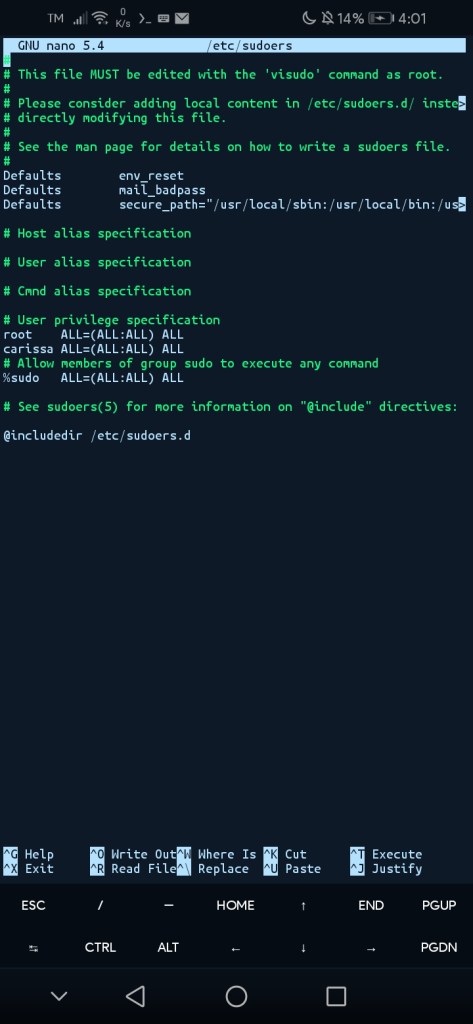
If you’re in to a text based nano editor You’ll see it like this
A screenshot of what’s inside the file of “sudoers”
GNU nano 5.4              /etc/sudoers *
#
# This file MUST be edited with the 'visudo' command as root.
#
# Please consider adding local content in /etc/sudoers.d/ inste>
# directly modifying this file.
#
# See the man page for details on how to write a sudoers file.
#
Defaults        env_reset
Defaults        mail_badpass
Defaults        secure_path="/usr/local/sbin:/usr/local/bin:/us>

# Host alias specification

# User alias specification

# Cmnd alias specification

# User privilege specification
root    ALL=(ALL:ALL) ALL

# Allow members of group sudo to execute any command
%sudo   ALL=(ALL:ALL) ALL
# See sudoers(5) for more information on "@include" directives:
@includedir /etc/sudoers.d
At #User Privilege specification, do this:
root ALL=(ALL:ALL) ALL
*username* ALL=(ALL:ALL) ALL <==do this
then login to your created account by typing login "username" Then type password and done. Then execute a command by typing
sudo apt install xfce4 -y
Wait for complete installation
If done then There's a text GUI required to select keyboard.. just choose English (US) And wait for process
If done go open XSDL, wait for blue screen with instructions If done then follow the video as it will guide you on the rest of the instructions.

 Blaze YT Tech Page